Installation and Setup
This guide provides installation and first setup instructions for non-developer users of the PyGREET desktop application. The application runs on Windows, macOS, and Linux systems. It provides a graphical interface for lifecycle modeling using a bundled Python engine and local SQLite storage.
System Requirements
PyGREET has been tested extensively on Windows 10 and Windows 11, as well as macOS Apple silicon and Ubuntu amd64. It is recommended that users run PyGREET on one of these platforms.
Minimum Requirements
- RAM: At least 8GB
- CPU: Dual-core processor
- Storage: At least 500MB of available space
- Screen Resolution: 1920x1080 (optimal) - lower resolutions will work, but some elements may be difficult to read
Better technical specifications will improve the performance of PyGREET, though these specifications serve as a base guideline.
Installation Steps
Previous PyGREET Installations
If you have previously installed a version of PyGREET to test, there may be cache files left over from that version. Please remove the following folders before reinstalling.
- Windows (installed):
C:\Users\<username>\AppData\Local\PyGREET - Linux (installed):
~/.local/share/pygreet/ - Mac (installed):
~/Library/Application Support/pygreet/
Windows Installation
- Download the
.exeinstaller from the Box share folder you received as a PyGREET tester - Double-click the installer
- Follow the prompts within the installer
- Launch PyGREET from:
- Start Menu
- Desktop
- Taskbar search box
macOS Installation
- Download the
.dmgfile from the Box share folder you received as a PyGREET tester - Open the
.dmgfile - Drag the application to your Applications folder
- Launch PyGREET from:
- Launchpad
- Spotlight Search
Linux Installation (Debian/Ubuntu)
PyGREET for Linux is distributed as a .deb package built for x64 (amd64) systems on Ubuntu.
- Download the
.debfile from the Box share folder you received as a PyGREET tester - Install the package using one of the following methods:
- Via the terminal:
- Via a graphical installer: Double-click the
.debfile to open it with your system's software installer
- Launch PyGREET from:
- Application menu
- Terminal by typing
pygreet
Note
The .deb package is built and tested on Ubuntu. Other Debian-based distributions (e.g., Linux Mint, Pop!_OS) may also work but are not officially tested.
First Launch
On first launch, the application will initialize the local database and launch. The first launch may take more time as the application has to initialize local files.
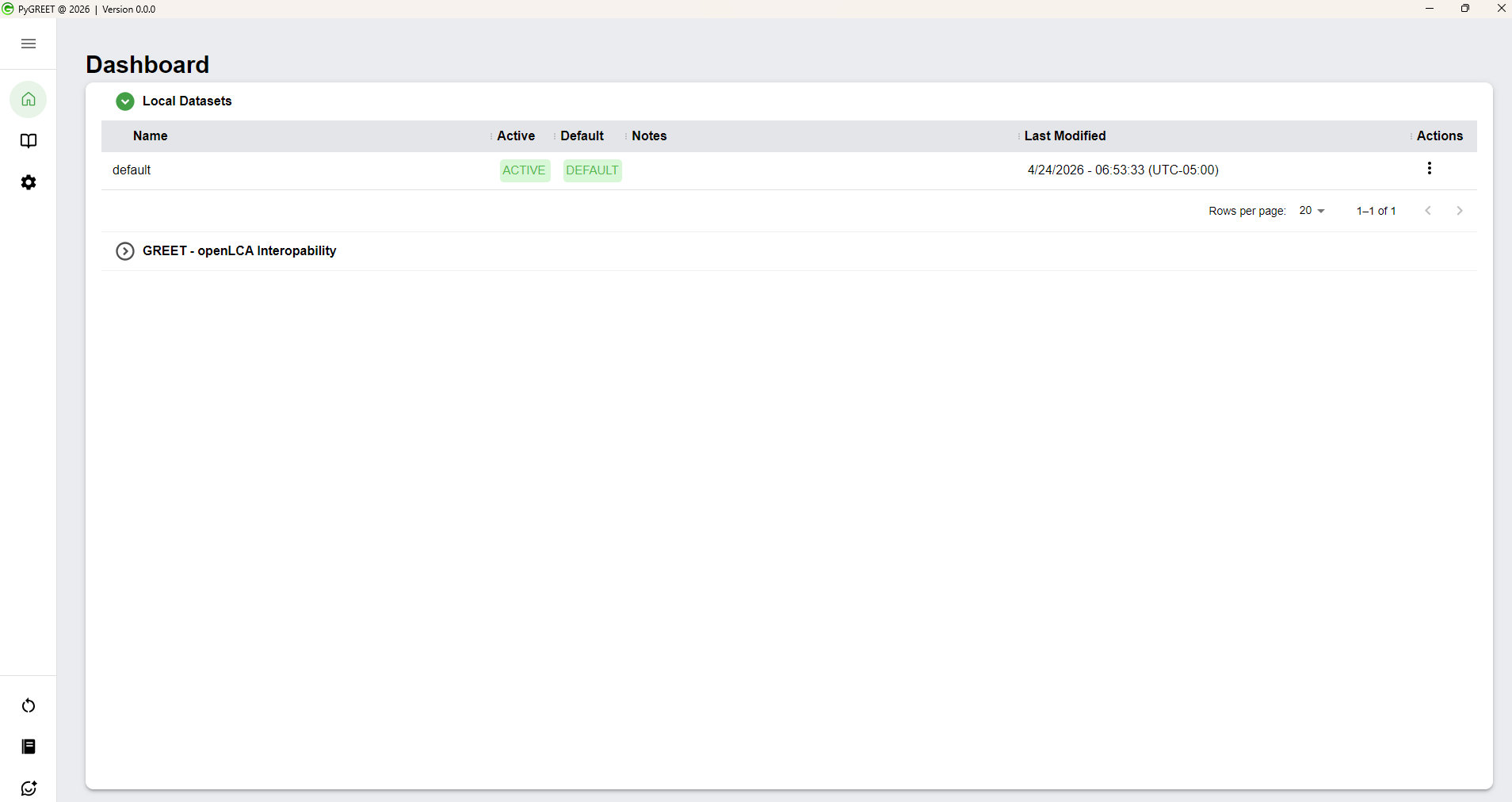
You will see a splash screen with a loading bar while the application is loading. If the launch is successful, the application will load the dashboard, showing the database and links to the feedback survey, and the openLCA interoperability website.
Important - Clone Default Dataset
After the first launch of PyGREET, it is highly recommended that you click on the triple dot icon for the default dataset and clone it, making a duplicate dataset to work from. This ensures that you can always revert back to the default data if needed, by recloning the default dataset and activating the new clone.
Troubleshooting
Following the above instructions should successfully install and run PyGREET. If issues occur:
- Try uninstalling and reinstalling the program
- Make sure PyGREET has sufficient permissions to run on your machine
- If errors still persist, please inform the PyGREET team through the tester email you received with the package
Error Log Locations
If reporting any issue to the PyGREET team, please include the error log, located at the following path:
- Windows: %APPDATA%\pygreet\logs\main.log (e.g. C:\Users\
\AppData\Roaming\pygreet\logs\main.log) - macOS: ~/Library/Logs/pygreet/main.log
- Linux: ~/.config/pygreet/logs/main.log
Feedback and Additional Questions
We appreciate your help testing PyGREET! Feedback can be provided via:
- The Feedback form accessible on the dashboard of PyGREET
- The link included in the email you received as a tester
Your feedback is critical as we take steps to refine and improve PyGREET.