Library / Search
Overview
The Library and Search features in PyGREET are designed to provide folder-based and tabular access to all system components. The interface is context-aware, showing only the relevant folders based on the active editor, which helps streamline the user's focus and minimize unnecessary clutter. This system organizes the entities within PyGREET into discrete categories to aid in analysis.
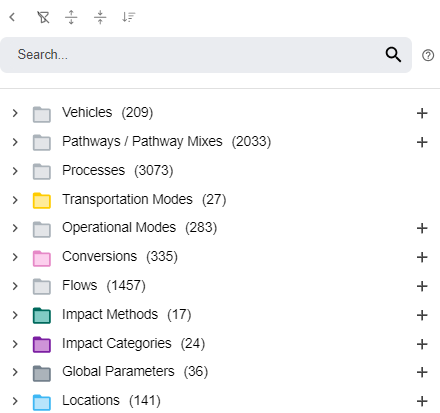
Entity Color Coding and Icons
Folders and their tabs are visually coded with specific background colors to help users quickly recognize content types. Note that some folders, such as the Stationary Process and Transportation Process folders, are linked together in a larger parent folder (i.e the Processes folder). In those cases, those parent folders are gray.
| Folder Name | Subfolder | Color | Entity Icon |
|---|---|---|---|
| Flows | Elementary Flow | Purple |  |
| Flows | Non-elementary Flow | Light Gray |  |
| Processes | Stationary Processes | Light Blue |  |
| Processes | Transportation Processes | Orange |  |
| Conversions | - | Pink |  |
| Transportation Modes | Tanker | Yellow |  |
| Transportation Modes | Barge | Yellow |  |
| Transportation Modes | Truck | Yellow |  |
| Transportation Modes | Pipeline | Yellow |  |
| Transportation Modes | Rail | Yellow |  |
| Transportation Modes | MagicMove | Yellow |  |
| Transportation Modes | Generic | Yellow |  |
| Operational Mode | Orange |  |
|
| Vehicles | - | Red |  |
| Pathways | - | Green |  |
| Pathway Mixes | - | Dark Blue |  |
| Global Parameters | - | Dark Gray |  |
| Locations | - | Light Blue |  |
| Impact Methods | - | Dark teal |  |
| Impact Categories | - | Purple |  |
Search Functionality
Basic Search Functionality
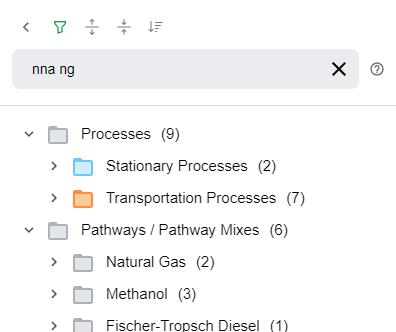
The library may be searched by typing into the search bar at the top of the library. Library elements will be filtered to only include entities that contain the search query in their names.
Note
The search is case insensitive and will be shown in lower case.
Example: Searching for "nna ng" will only show entities with "NNA NG" in their name.
Advanced Search Functionality
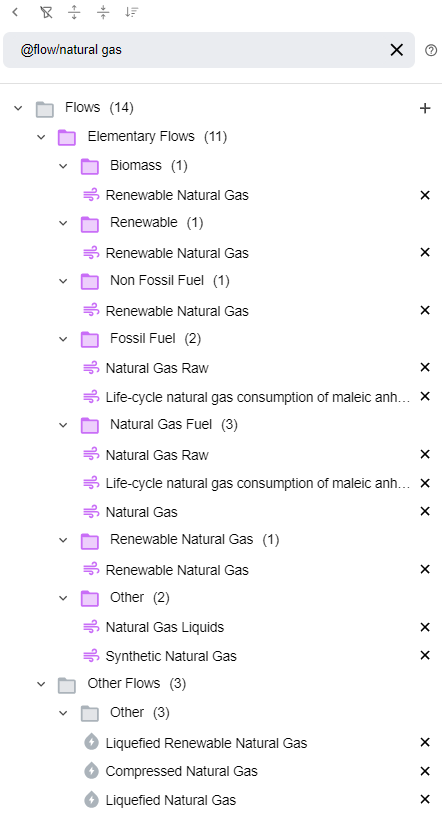
In Addition to normal search features, Library elements may be filtered by entity type using the pattern "@[Entity Type]/"
Example: Searching for "@flows/natural gas" will only show flow entities with "natural gas" in their name
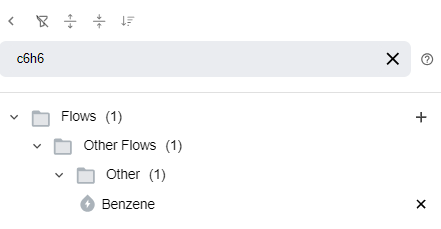
When searching for resources, alternative names can also be used as search parameters.
Creating and Opening Entities
Existing entities can be opened, and new entities created, by interacting with the library:
- Create a new entity: Click the
+icon on the right side of the label that appears when you hover over a folder - Open an entity: Click on it - the entity will be loaded into a new tab on the main view of PyGREET