Transportation Process Editor
Overview
The Transportation Process Editor (TPE) models transportation processes (e.g., sequences of series or parallel activities carried out by product transportation modes including pipeline, road, air, sea, rail, and intermodal transport between origin-destination pairs). A transportation process models movement of resources and products between stationary processes. It is defined by cargo type and payload, transportation mode, transportation distance, energy intensity, material loss during transportation, etc.
A Transportation Process consists of:
- General parameters
- Construction of the process itself:
- Locations to travel to and from
- One or more transportation steps to move between those locations
The TPE has three bottom tabs:
- General Information Tab: Define parameters for the whole transportation process
- Editor Tab: Construct the transportation process
- Usage Tab
The functionality of the usage tab is explained within the relevant section within the Tab Navigation Section.
General Information Tab
The general information tab consists of:
- Name
- Resource transported
- Urban share
- Moisture content
- Notes
- Loss at Destination
These cells can be clicked into and edited by the user.
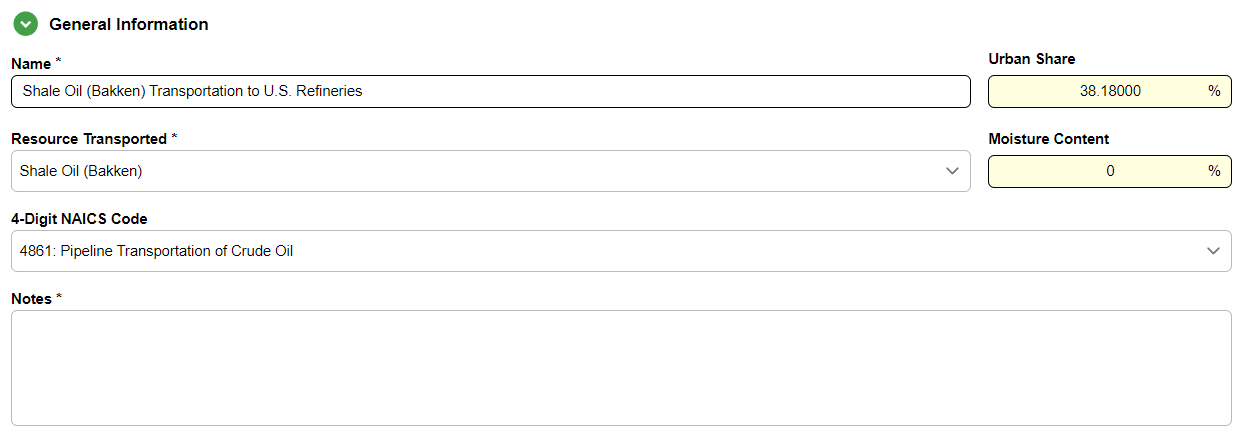
Urban Share
The Urban Share represents the fraction of the final delivery leg, specifically the distance traveled within the boundaries of the destination city or terminal area, that occurs in a high-density urban environment.
Moisture Content
Moisture content is the measure of the amount of water present in a material, typically expressed as a percentage of the total mass (wet basis) or the dry mass (dry basis). In the context of energy consumption, moisture content is a critical variable because it acts as "dead weight" that requires energy to move but provides no thermal or chemical value to the end process.
Selection of Transported Resource
When building a new transportation process, the first thing to do is to select the material transported. The reason the material transported needs to be specified is that the energy intensity for most of the modes (except for Rail) depend on it.
Loss at Destination
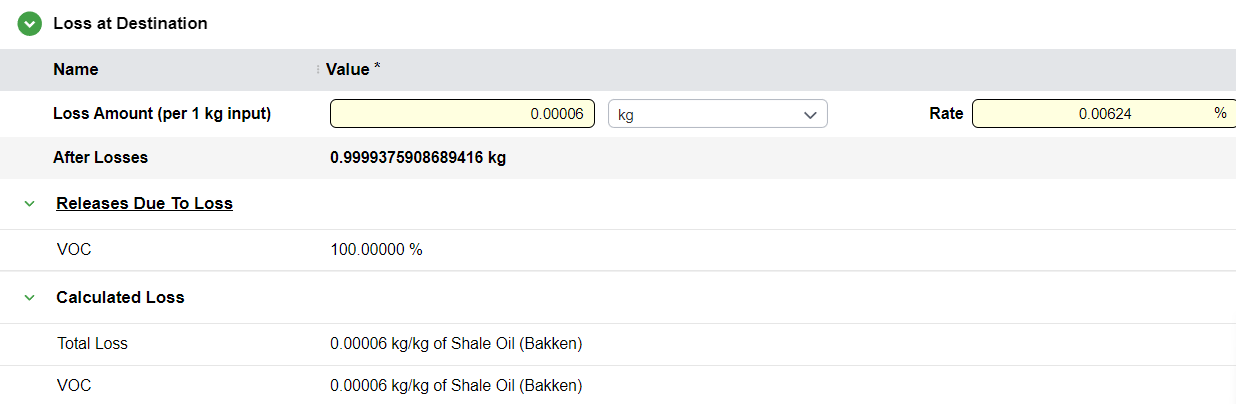
The loss at destination allows the user to enter either:
- Loss amount (per 1kg of input)
- Rate (%)
Note
Editing either the amount or rate will automatically adjust the other.
The calculated loss is then shown in the table below. The user can also click the Releases Due to Loss label to open the Flow Editor to edit the transported resource, to modify the releases due to loss of the flow.
Calculated Loss
Like stationary processes, any elements declared within the Releases Due to Loss section of the Flow Editor are explicitly accounted for in the model's mass balance. These values are displayed as calculated losses and are directly integrated into the overall pathway results.
The Editor Tab
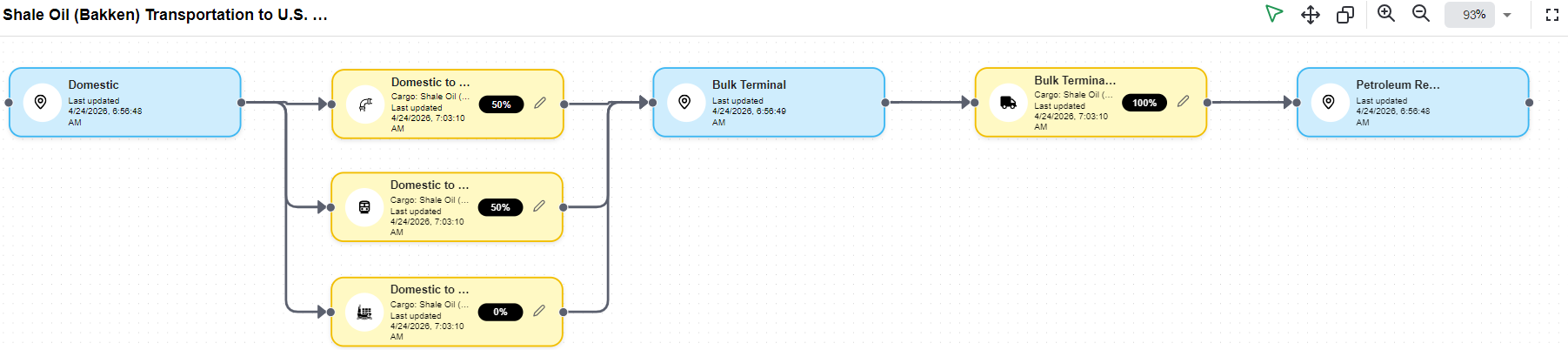
The Editor Tab allows the user to modify the steps of the transportation process. The canvas on the editor tab consists of blue and yellow blocks (nodes/vertices) connected by lines (edges).
- Blue nodes: Represent locations
- Yellow nodes: Represent transportation steps
The transportation structure is built by dragging and dropping transportation steps and locations from the library panel side to the building canvas on the editor.
Info
The user can zoom in on the canvas as required or enter full-screen mode to explore the existing graph structure. Nevertheless, full-screen mode conceals the library tree, preventing any location or mode from being dragged from the library.
Adding Nodes
- Search for the desired location or mode from the library
- Drag it onto the canvas
Managing Nodes
- Move: Click and drag the node around
- Remove: Right-click and delete it
- Duplicate: Click on a node to activate it, then click the copy button (two intersecting squares) in the top toolbar
Canvas Controls
- Zoom in/out: Click the magnifying glasses with
+or-respectively
Connecting Nodes
- Click on the black circle at the right end of one node
- Drag to the black circle on the left of another node
- This creates an edge connecting the two
- Delete an edge by right-clicking the edge and clicking delete
Transportation Process Rules
Connection Rules
- Locations must be connected to transportation mode steps
- Transportation steps can be connected to other transportation steps
- Must end in a location
Locations
Locations are used to have a clear graphical representation of the process; they are, however, not used in any way in the calculations.
Parallel Steps
For transportation steps in parallel (multiple steps connected to the same start and endpoint), the shares must total 100%. Modify by double-clicking the black and white percentage block on the step.
Editing Transportation Steps
The Mass Share of the cargo transported by a specific step can be modified by clicking the black field located directly on the block.
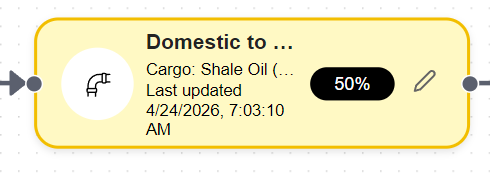
To edit the other parameters for a given transportation step:
- Click the pencil icon in the transportation step
- A side panel will open to display the step parameters
Transportation Step Editing
The Transportatation Step Editor is composed by three section:
- Accounting for backhaul travel
- User Specified Parameters
- Losses
Accounting for backhaul travel
Accounting for backhaul travel can be checked for all transportation modes except Pipeline and Rail.
User Specified Parameters Section
tp_step_editor_user_defined
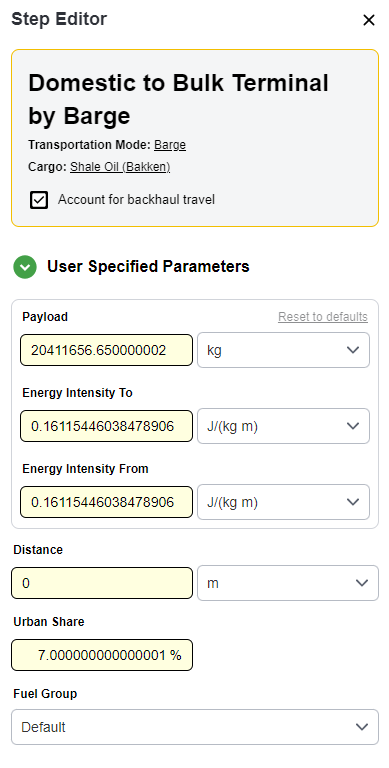
In this section the user can modify:
- Payload
- Energy intensity To
- Energy intensity From
- Distance
- Urban share
- Fuel group
Warning
- If a transportation mode lacks specific data (such as energy intensities or payload) for a given cargo, these values can be defined directly within the step or by navigating to the Transportation Mode Editor.
- Parameters defined locally at the step do not overwrite the global settings in the Transportation Mode; instead, they are treated as local overrides that the software prioritizes during calculation execution.
- In scenarios where both energy intensity and payload are defined simultaneously within the step, the calculation engine will prioritize the energy intensity value to determine the final consumption.
Urban Share
Used to calculate what fraction of the emissions from the step are going to urban areas.
Fuel Group
Multiple sets of fuel groups are predefined and can be selected using the dropdown menu.
Note
The exact parameters shown for a transportation step will differ depending on the mode type. For more information, please see the Transportation Mode section.
Losses Section
The user may choose to enter step loss based on different configurations. Based on the configuration, the loss will be calculated and shown below the user inputs to preview the calculation.
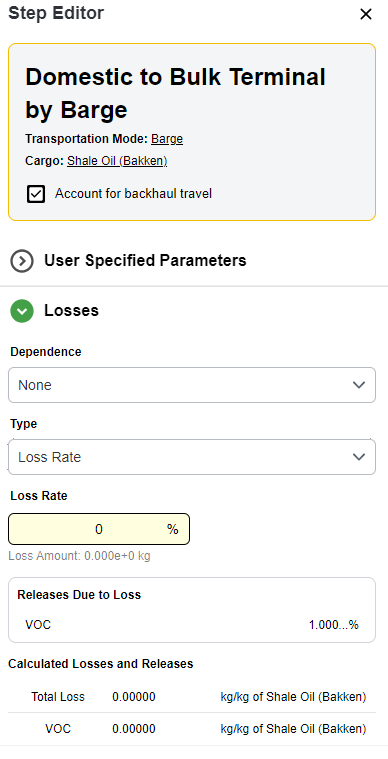
Dependence
The calculation of lost material is governed by the chosen Dependence mode, which determines which physical variable drives the reduction in resource mass:
- Distance: The loss is calculated using a rate expressed in %/m. The total distance of the transport leg is used as the primary parameter to determine the final amount of material lost during transit.
- Time: The software first calculates the travel duration using the distance and the average speed of the selected mode. A loss rate expressed in %/s is then applied to the total amount of resource transported over that calculated time period.
- None (constant): If no physical dependency is selected, the losses are calculated as a simple fixed ratio by multiplying a constant loss rate by the total amount of resource entering the transportation step.
Type
The Type setting defines the units and mathematical application of the loss value:
- Amount: The loss is defined as a specific quantity (e.g., mass, mass/time, or mass/distance) according to the selected dependence. This is useful for modeling fixed leakage or boil-off rates that are independent of the total cargo scale.
- Rate: The loss is defined as a percentage (e.g., %, %/time, or %/distance). This approach scales the loss proportionally to the total amount of resource being transported, which is standard for modeling diffuse fugitive emissions or spillages.
Validation
When saving a transportation process, validations are run to ensure the process is set up correctly.
Validation Errors
If any validation errors occur, they will be shown at the bottom of the screen, and the user will be required to resolve them in order to continue saving.
