Tab Structure and Navigation
Overview
Tabs are the main way to navigate through the entities loaded within PyGREET. There are two sets of tabs: tabs located at the top of the screen, and tabs located at the bottom of the screen.
Top Tabs
Tabs located at the top of the screen serve to move between different entities loaded from the Library.

Tab Features
- Color coding: Tabs are outlined in the color that corresponds to the entity type in the library (e.g., red for vehicle, orange for transportation process, etc.)
- Active tab: Filled in green if it is the currently active tab
- Long names: If the name of a tab is cut off due to length, the full name can be shown by hovering over the tab with the mouse
- Closing tabs: A tab can be closed using the
Xicon on the right of a tab - If changes are made, a popup window will confirm if those changes should be saved or discarded before closing
Bottom Tabs
Tabs located at the bottom of the screen navigate through different windows within the same entity. These tabs are different depending on the entity type.

Common Elements
All entities share a few commonalities:
- Usage Tab: Shows where the entity is used throughout PyGREET
- General Information Tab: Includes the name of the entity and core properties
- Save buttons: Located in the bottom tab area
- Save: Commits changes to the current entity
- Save As New: Saves the changes to a brand new entity (requires changing the entity name)
- Draft checkbox: Mark an entity as a draft, indicating it will be revised later
- Last Updated: Shows the time the entity was last updated
The Usage Tab
The Usage Tab, found at the bottom of most PyGREET editors, displays where the current entity is used across the system. This tab provides a hierarchical table view showing direct and nested dependencies.
No Dependencies
If an entity has no dependencies, the UI will show the message: "No dependencies for this item."
Interacting with Dependencies
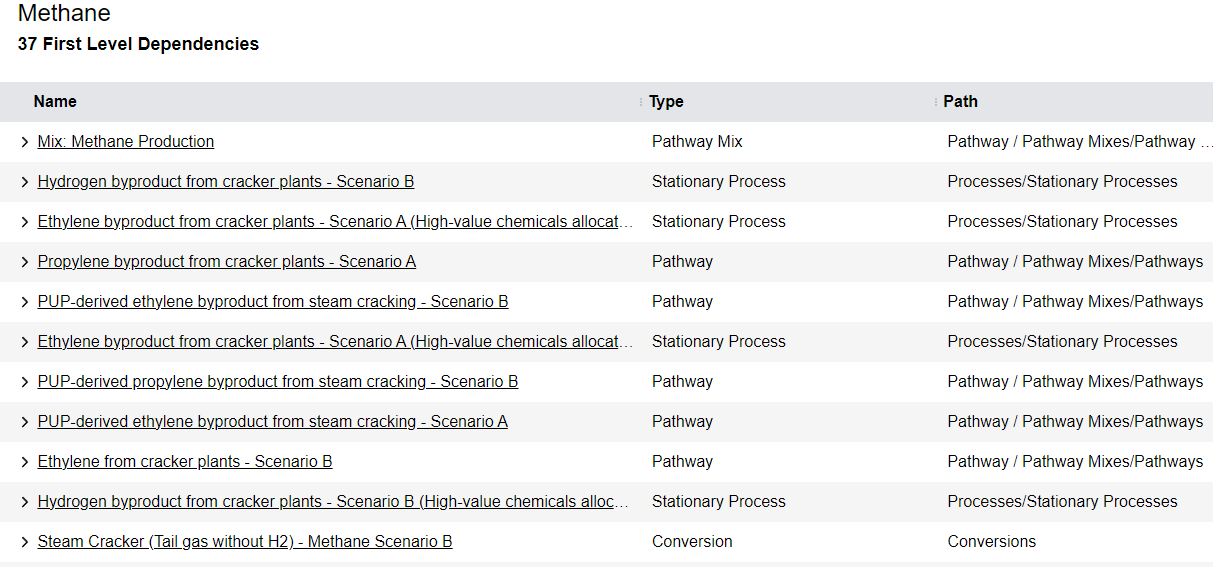
A given dependency can be clicked on to interact with it:
- Click the entity name: Opens it in a new tab to edit
- Click the carat (▸): Shows the nested dependencies of the selected dependency